How to Redeem WSOP Free Chips
If you’re trying to figure out how to redeem WSOP free chips, you’re in the right place.
This guide walks you through the whole process step by step, no matter what device you’re using.
It’s pretty simple once you know where to tap, but a lot of players get stuck the first time because the app doesn’t always open automatically.
We post fresh links every day on the daily free chips page, so you’ll always have something to claim. But knowing how to actually redeem them makes a big difference. Let’s get into it.
What You Need Before You Click Any Link
Before anything else, you need to be signed into your WSOP account. This is probably the most common reason a claim fails.
If you tap a link while logged out, the game might open on a login screen and the reward just won’t register. Sign in first, then click the link.
It sounds simple but a lot of people skip this and wonder why their chips didn’t show up. Also worth knowing, each reward link can only be claimed once per account.
You can’t use the same link twice, and sharing it with a friend won’t work for you again either.
How Long Do WSOP Reward Links Last
Most WSOP free chip links stay active for roughly 3 days from when they’re posted. After that, the link expires and you’ll get an error or just get redirected without a reward.
That’s why it’s worth checking back daily rather than saving up a bunch of links to use later.
All the links we share here go through the official wsopga.me redeem system, so they’re the real deal, just time sensitive.
The table below gives you a quick overview of how the links work.
| Detail | Info |
|---|---|
| Link source | Official wsopga.me redeem page |
| How long links last | Roughly 3 days |
| Claims per account | One per link |
| Must be signed in | Yes, before clicking |
| Works on | Android, iPhone, Facebook, desktop |
How to Redeem WSOP Free Chips on Android
Android is usually the smoothest experience. Here’s what to do when you’re ready to claim your chips.
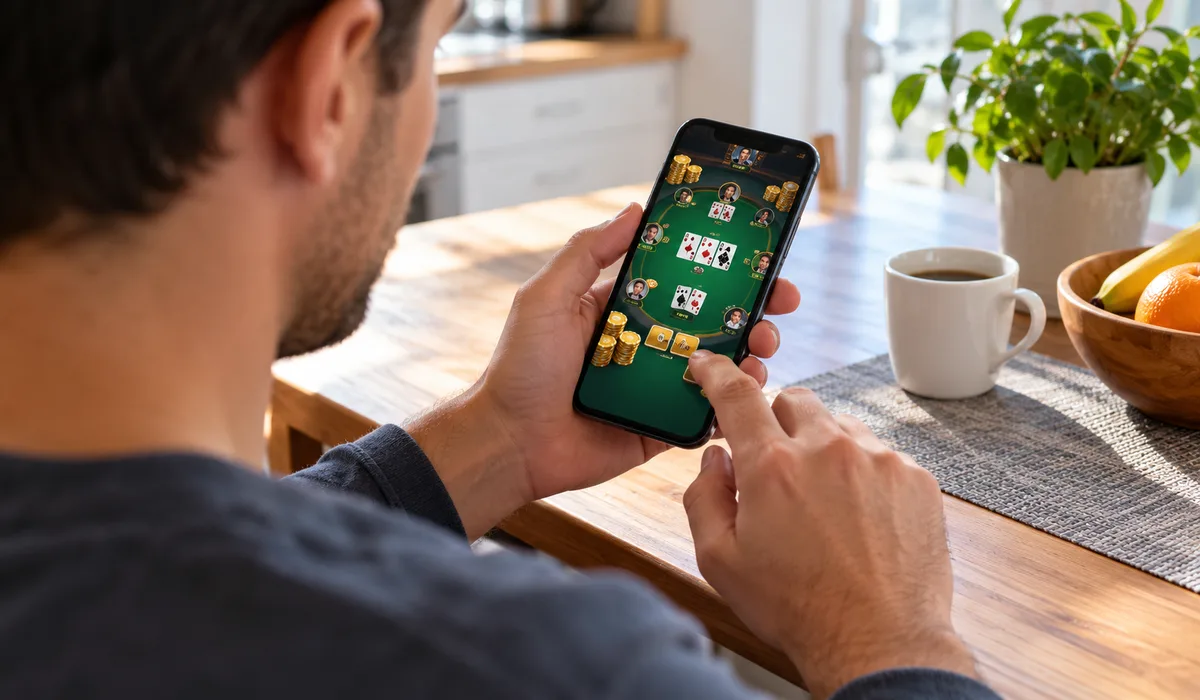
- Open the WSOP app and sign into your account.
- Go back to your browser or this site and tap the reward link.
- The link should redirect to the wsopga.me redeem page and then launch the app automatically.
- Once the app opens, your chips should be added right away.
- If nothing happens, open the app manually and check your chip balance, sometimes it applies in the background.
If the link opens in a browser tab and just sits there without launching the app, scroll down on that page and look for an “Open App” button.
Tap that and it should finish the process. Some Android browsers handle app links differently depending on your settings.
How to Claim Free Chips on iPhone
The steps on iPhone are basically the same, but iOS can be a little fussier about opening apps from browser links. Here’s the most reliable way to do it.
- Open WSOP from the App Store and sign in before doing anything else.
- Tap the reward link from Safari, Chrome on iOS sometimes blocks the redirect.
- You may see a popup asking if you want to open the WSOP app. Tap “Open.”
- The app should launch and credit your chips automatically.
- If the page just loads in the browser and nothing happens, look for a button on that page to open the app and tap it.
Using Safari rather than Chrome makes a big difference on iPhone. If you’re having repeated trouble, try copying the link and opening it directly in Safari.
Redeeming WSOP Chips on Facebook and Desktop
A lot of players still use WSOP through Facebook or on a desktop browser, and the process works a bit differently there.
First, make sure you’re signed into both Facebook and your WSOP account through the Facebook version of the game. Then click the reward link from any browser.
It should open the wsopga.me page and automatically apply the chips to your connected account. On desktop, there’s no app to launch, so the browser does all the work directly.
You’ll usually see a confirmation message on screen when it goes through.
If you play on desktop but haven’t linked your account properly, the chips might not apply, double check your account connection in the game settings.
You can also find WSOP free chips codes that work slightly differently, where you enter a code manually instead of clicking a link. Same rules apply though, one use per account, and you need to be signed in.
What to Do If the Link Only Opens a Browser
This happens more than you’d think, especially on mobile. You click the link, it goes to the wsopga.me page in your browser, and just… sits there.
Don’t close it. Most of the time there’s a button on that page that says something like “Claim Now” or “Open in App”, scroll down if you don’t see it right away.
Tap that button and it should trigger the app to open and apply your reward.
If you still can’t get it to work, check out our WSOP free chips not working page for more specific fixes.
Sometimes it’s a browser setting, sometimes it’s a cache issue, and sometimes the link has just expired.
One Claim Per Account: What That Actually Means
Each link can only be claimed once per WSOP account.
It doesn’t matter if you use a different browser, clear your cookies, or try on a different device, the system tracks it by your account, not your device.
So once you’ve claimed a link, that one’s done. The good news is we post new links daily, so there’s always a fresh one to grab.
Bookmark the WSOP daily bonus page so you don’t miss any. Stacking up multiple claims over several days adds up fast, especially if you’re building a chip balance for bigger tables.
Final Thoughts
Knowing how to redeem WSOP free chips properly saves you a lot of frustration.
Sign in first, use Safari on iPhone if you can, and don’t panic if the link opens a browser, just look for that “Open App” button.
Head back to our daily links page every day to grab the latest rewards and keep your chip stack growing.